Cards & profiles
On Cards & profiles you see the cards assigned to you and you manage your profiles. Every card has its own link: for each one you choose which profile people see when they open it.
Who can use it: people with the User role, once an administrator has enabled Cards for them.
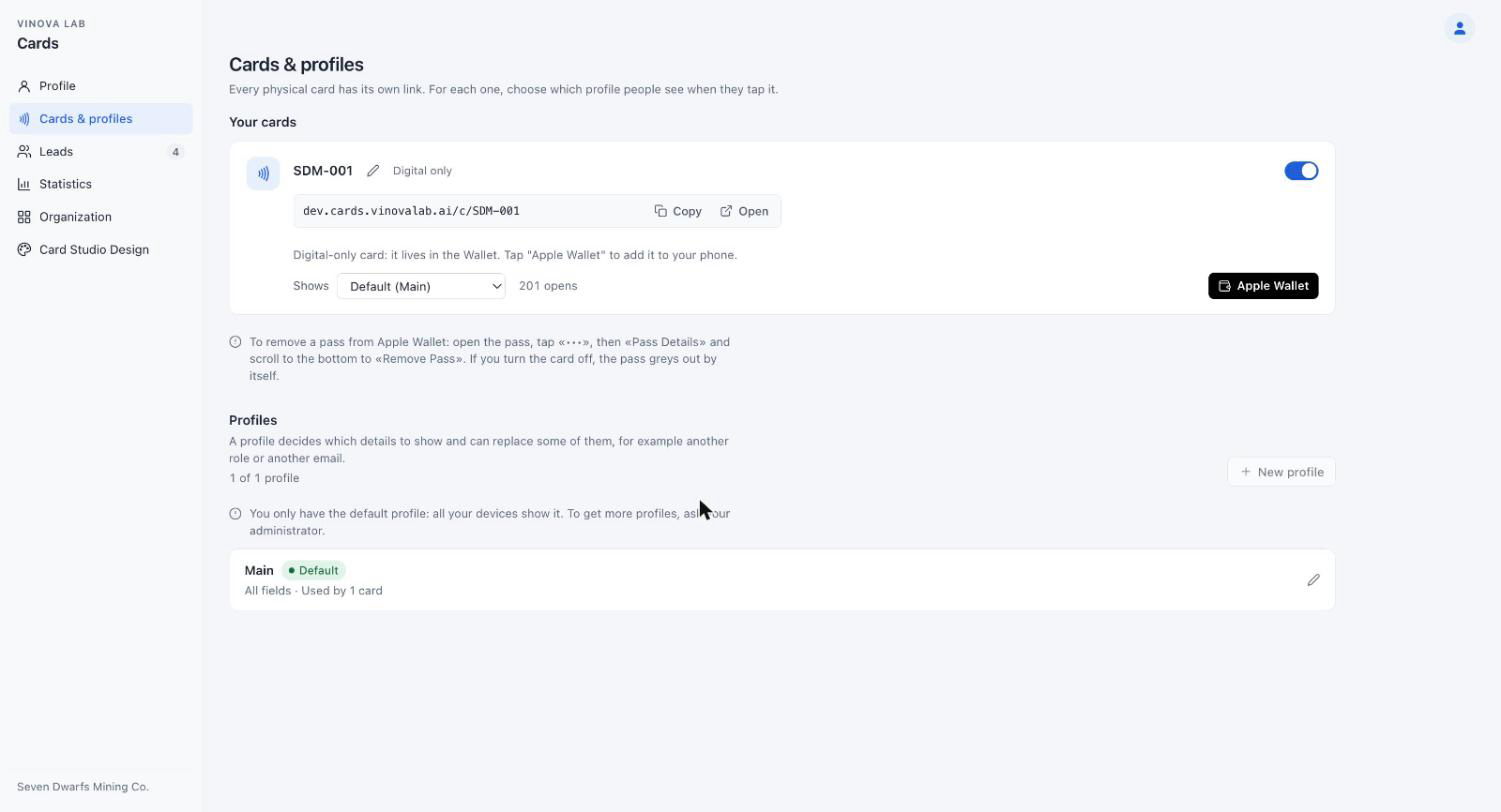
Cards and profiles in short
- A card is what people open: an NFC device (card, key fob, sticker, wristband) or a digital card that lives in Apple Wallet or Google Wallet.
- A profile decides which of your details the card shows, and can replace some of them (for example another role or another email).
- One profile is the Default: cards with no profile chosen show it.
Your cards
The Your cards section lists your cards. For each one you see its name, the profile it shows and how many times it was opened.
New cards are assigned by your company's administrator. NFC devices arrive ready to use: the administrator only links them to you. When they assign you a card, you find it here.
Choose which profile a card shows
- Find the card in Your cards.
- In Shows, pick a profile. Default (name) means the card follows your default profile.
The change applies right away to people who open that card.
Rename a card
- Click the pencil next to the card name.
- Type the new Card name and confirm.
Turn a card on or off
Use the switch on the card row. When a card is Off, people who open it no longer see your details and its Wallet pass turns grey.

Apple Wallet and Google Wallet
On iPhone:
- On the card row click Apple Wallet.
- Open the downloaded pass on your iPhone and add it to Wallet.
On Android, tap Add to Google Wallet in the Vinova Cards app: see Mobile app: Card.
The pass shows the QR code of your card's link. If the organization's design changes, the pass updates by itself.
To remove a pass from Apple Wallet: open the pass, tap •••, then Pass Details and scroll to the bottom to Remove Pass. To remove it from Google Wallet: open the pass in Google Wallet, open its details (⋮ menu) and choose Remove. If you turn the card off, the pass greys out by itself.
A Digital only card has no physical object: you use it from the Wallet.
Profiles
Create a profile
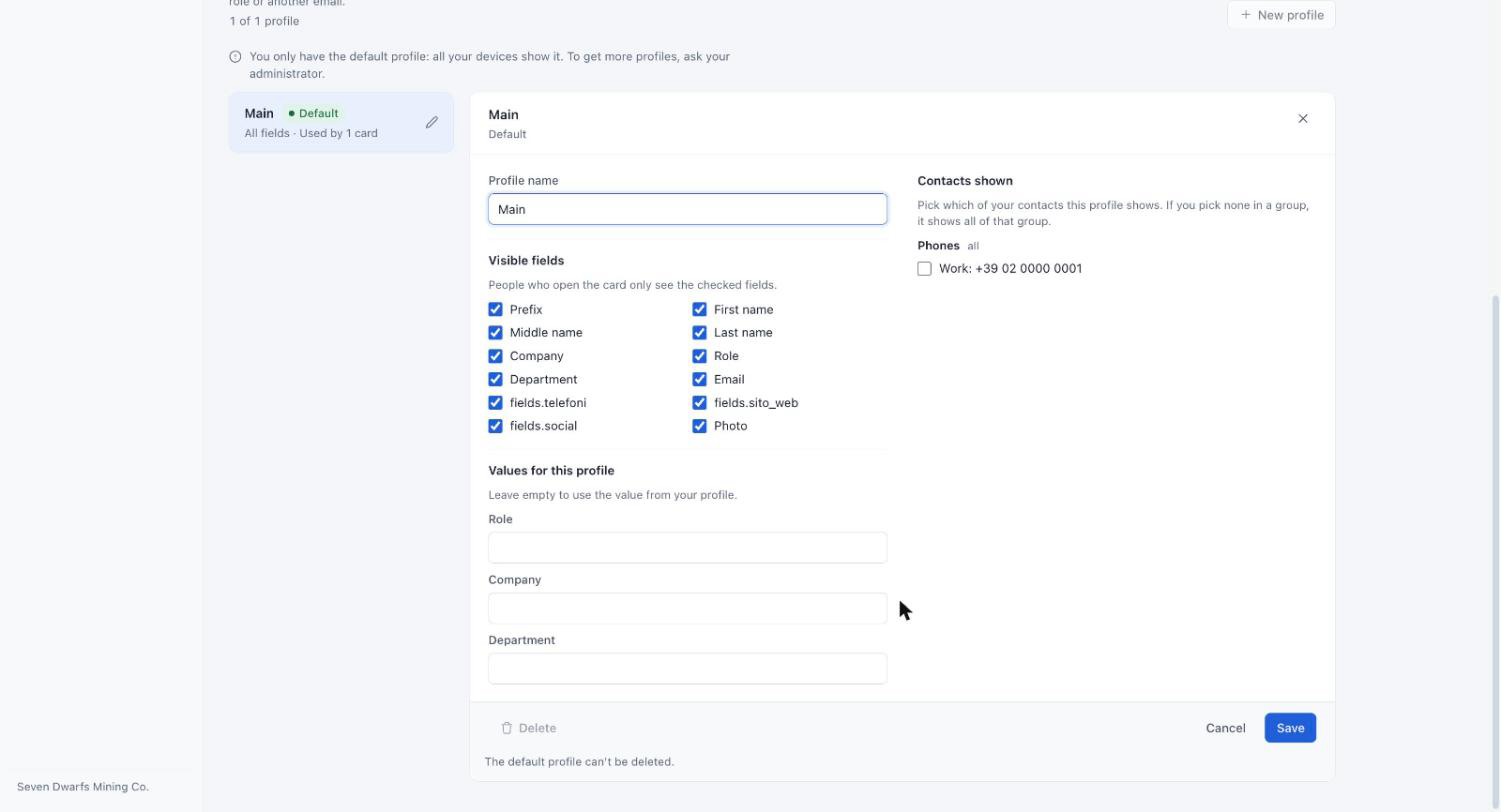
- In the Profiles section click New profile.
- Give it a Profile name, for example "Events" or "Foreign clients".
- In Visible fields, tick the details people will see. At least one is needed.
- In Values for this profile, fill in only what you want to replace (for example a different role). Leave empty to use the value from your profile.
- In Contacts shown, pick which of your contacts this profile shows. If you pick none in a group, the profile shows all the contacts of that group. Tick Also show the work email (first) if you want your work email at the top.
- Click Save.
Change the default profile
Open the profile and tick Make default, then save.
Delete a profile
Open the profile and click Delete. Cards using it switch to the default profile.
The default profile can't be deleted. Make another profile the default first.
Locked fields in profiles
Fields Managed by the company cannot be replaced in a profile. Some of them may be always shown: you see The company always shows it. See Managed fields.
How many profiles you can have
Your administrator decides the maximum number of profiles, default included. The page shows for example "2 of 3 profiles".
- If you only have the default profile, all your devices show it.
- When you reach the limit, delete a profile or ask your administrator to raise it.
Messages you may see
| Message | What it means |
|---|---|
| No card assigned. | The administrator has not assigned you any card yet. |
| No employee linked. | Your user is not linked to an employee: ask the administrator. |
| Cards is not enabled for you. | An administrator has to enable Cards for you. |
| Cards is disabled for you. | An administrator disabled Cards for you: your cards are off. |
Related pages
- Profile: your details and contacts.
- What people see
- Mobile app: Card and Profiles