Card Studio Design
Card Studio Design is where you design the organization's cards: pick a tool on the left and see the result right away.
Who can use it: Card Designer role. Open Card Studio Design from the menu.
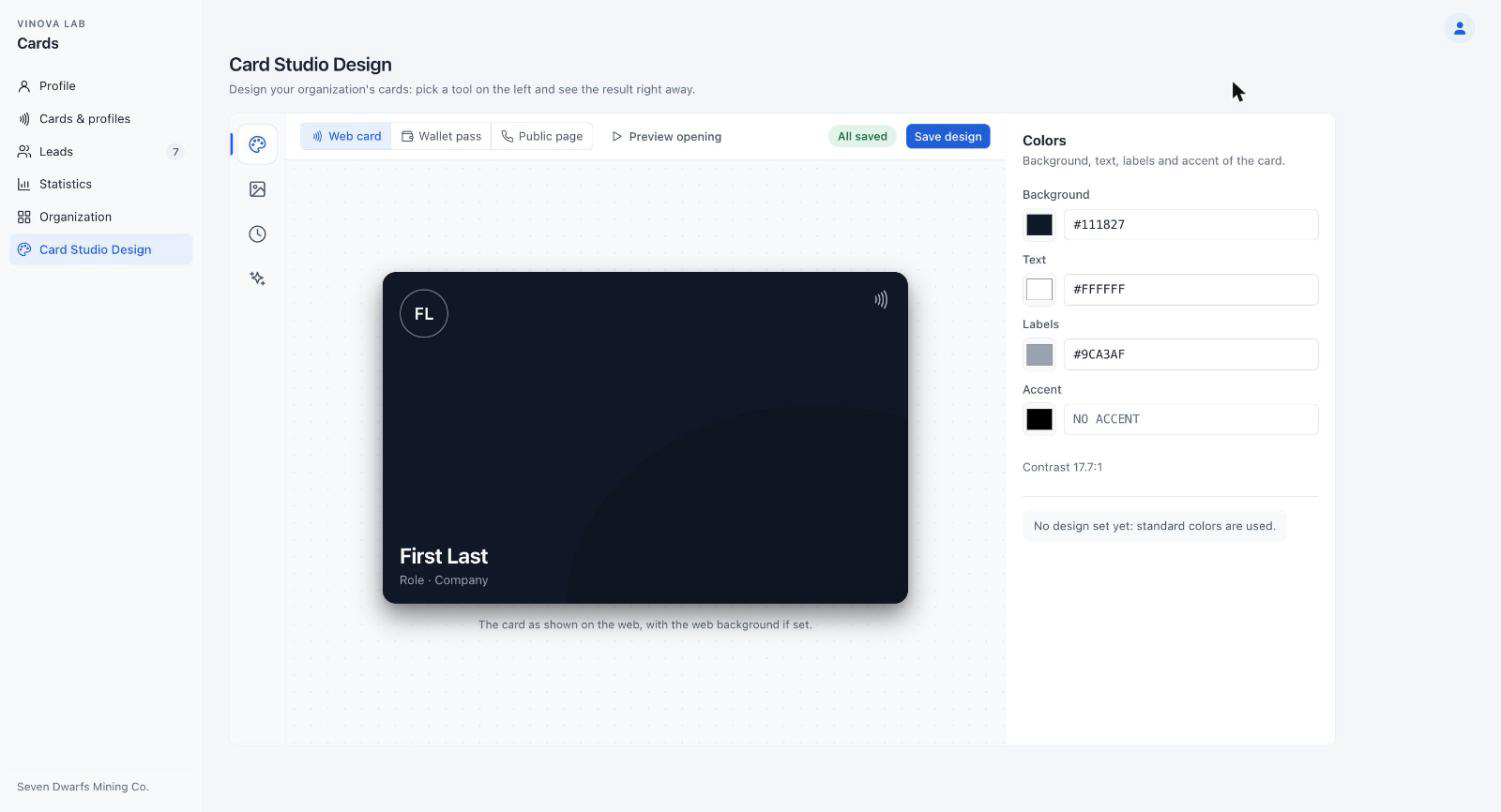
How the page is organized
- Tools (left): Colors, Images, Opening, Proposals.
- Work canvas (center): the preview, with three views: Web card, Wallet pass, Public page.
- Properties (right): the settings of the chosen tool.
At the top, Applies to chooses what you are designing: The whole company or a single sub-organization. A sub-organization uses the company design until you set its own.
The page tells you whether you have Unsaved changes or everything is saved (All saved).
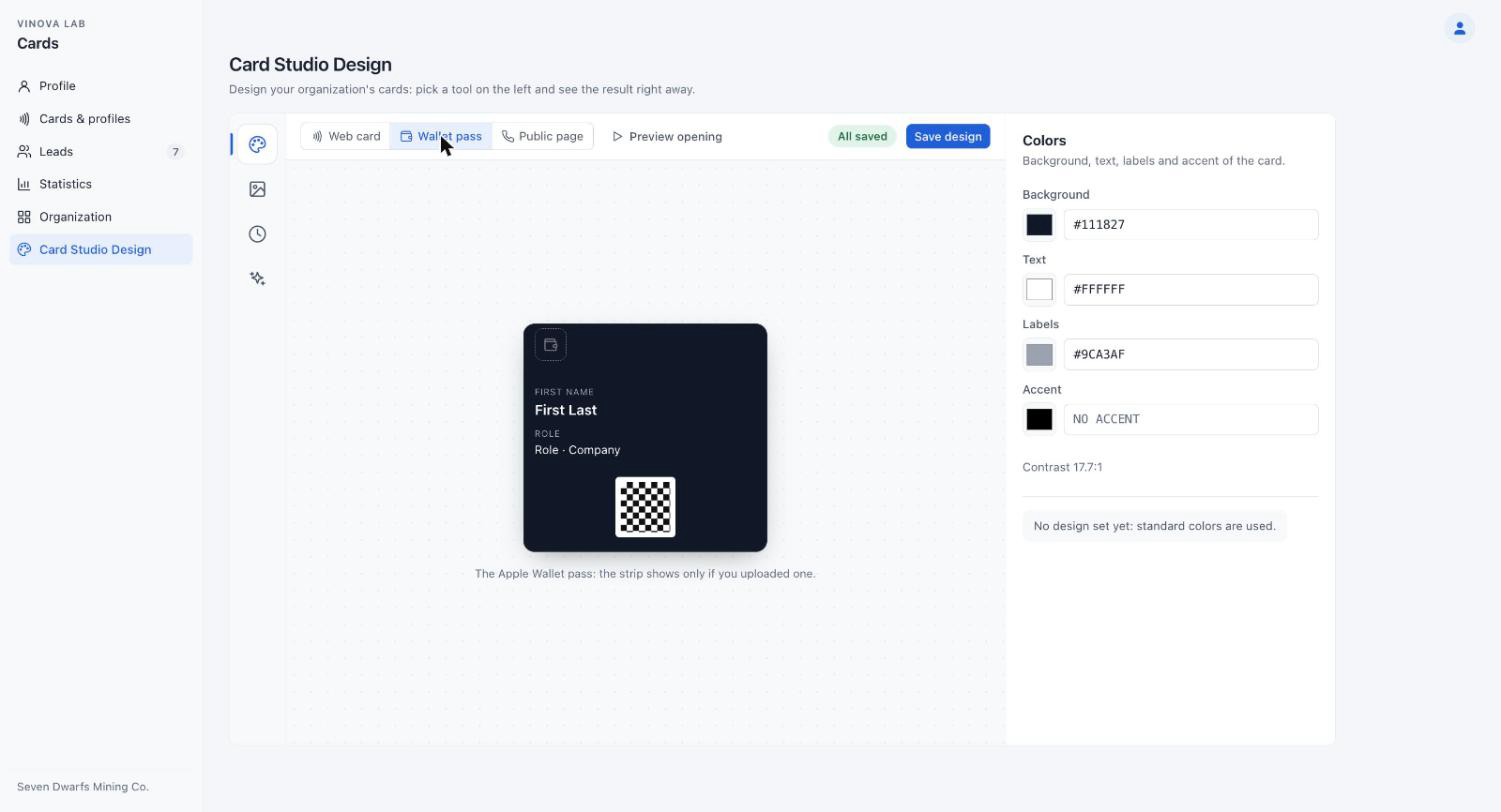
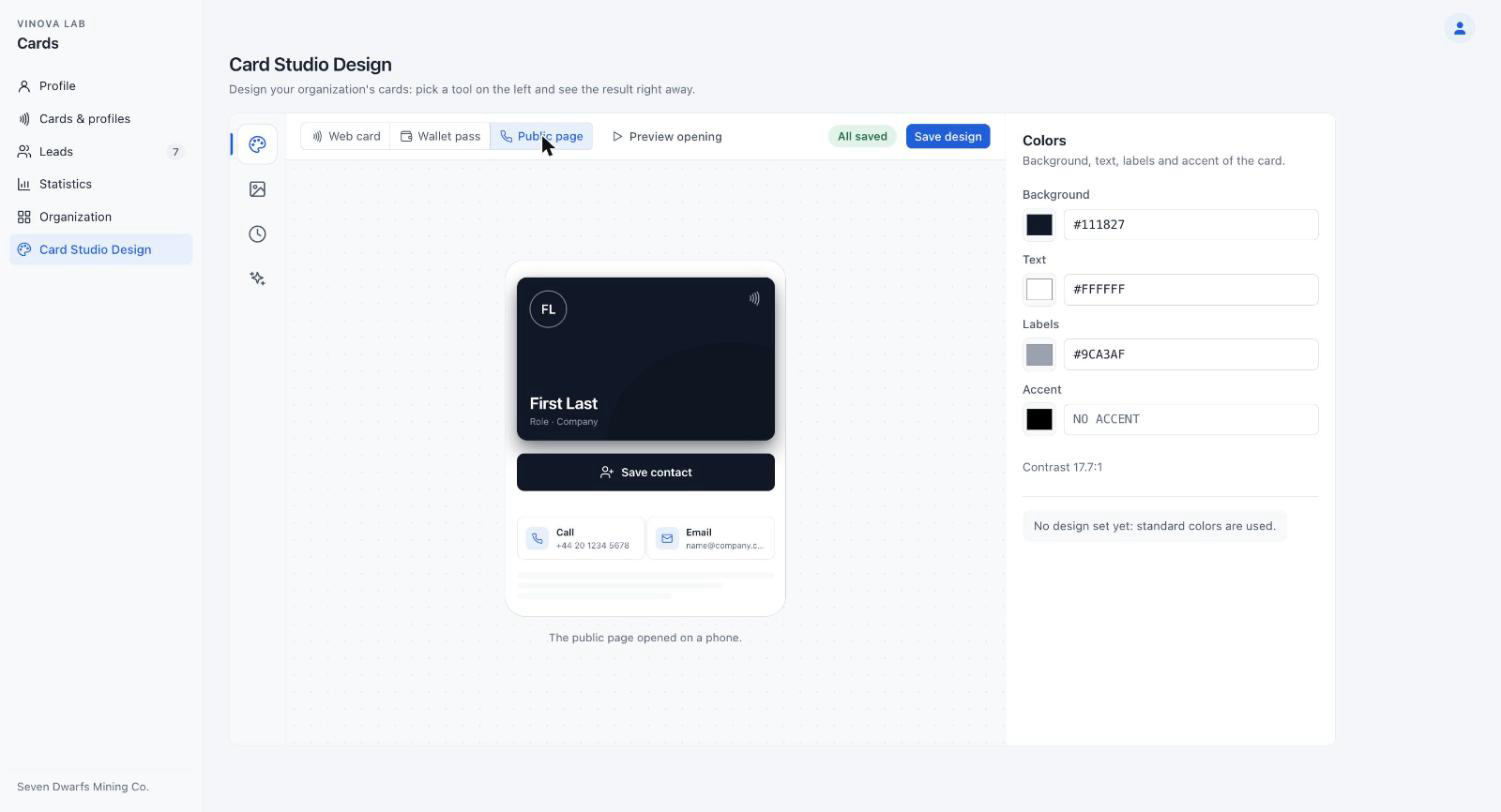
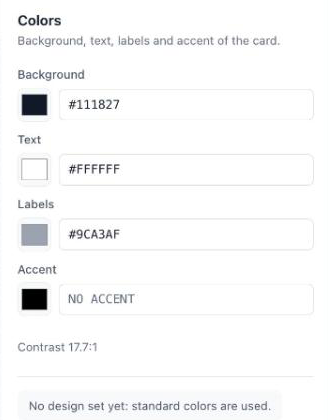
1. Colors
Under Colors you set Background, Text, Labels and Accent (or No accent). Colors are in the #RRGGBB format.
Cards checks that the text is readable on the background: if the contrast is too low (less than 4.5:1) it warns you, and you must pick other colors.
2. Images
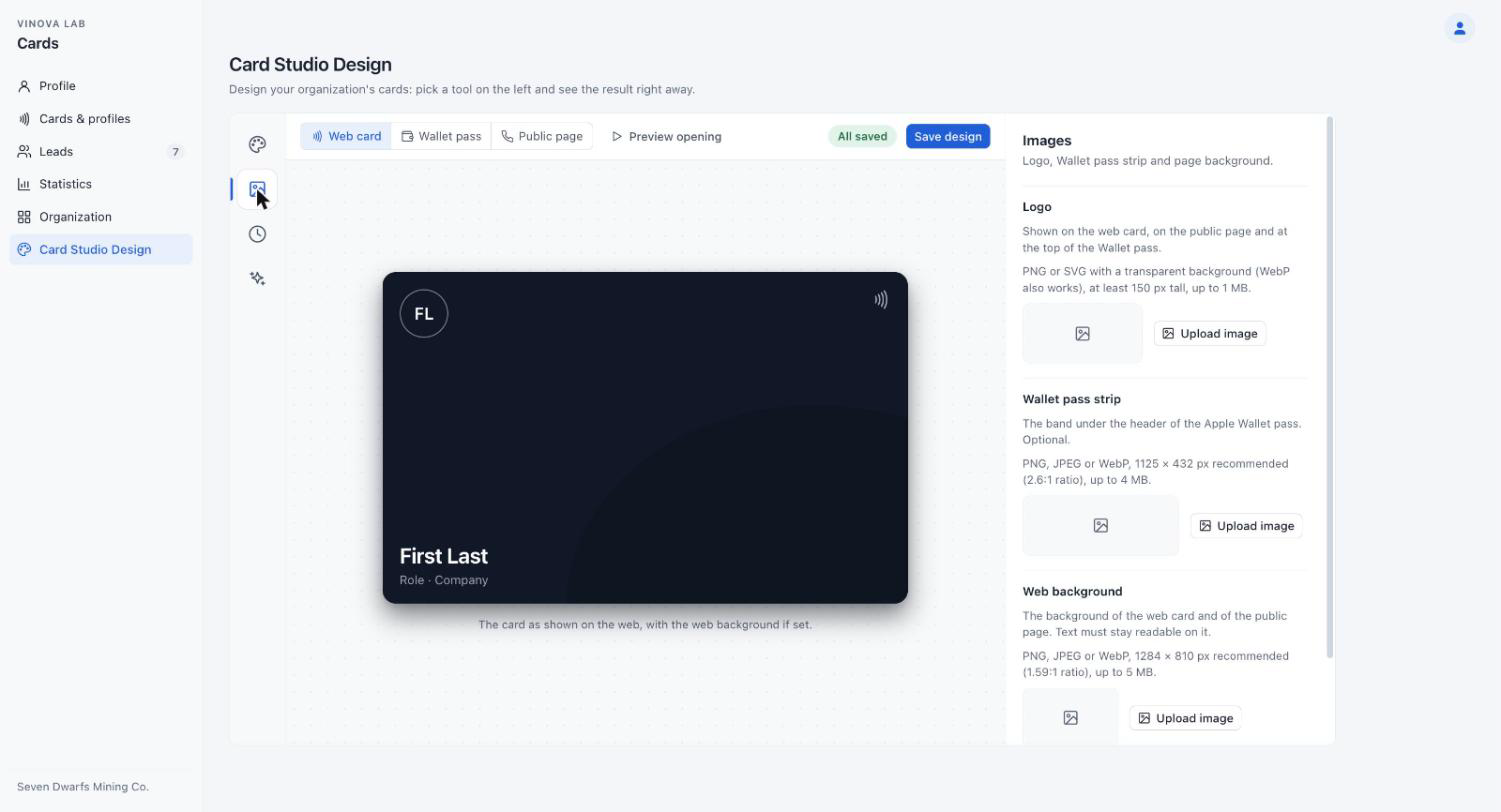
Under Images you can upload three images:
| Image | Where it appears | Requirements |
|---|---|---|
| Logo | Web card, public page, top of the Wallet pass | PNG or SVG with a transparent background (WebP also works), at least 150 px tall, up to 1 MB |
| Wallet pass strip | The band under the header of the Wallet pass (optional) | PNG, JPEG or WebP, 1125 × 432 px recommended, up to 4 MB |
| Web background | Background of the web card and of the public page | PNG, JPEG or WebP, 1284 × 810 px recommended, up to 5 MB |
- Click Upload image (or Replace if there is one already).
- Choose the file. Cards checks it (Checking…).
- If there is a problem (size, format, proportions, readability of the text), a message tells you what to fix. Use Remove to take the image away.
An SVG logo must be a plain SVG: if Cards says it contains scripts or external references, export it again from your graphics program.
3. Opening animation
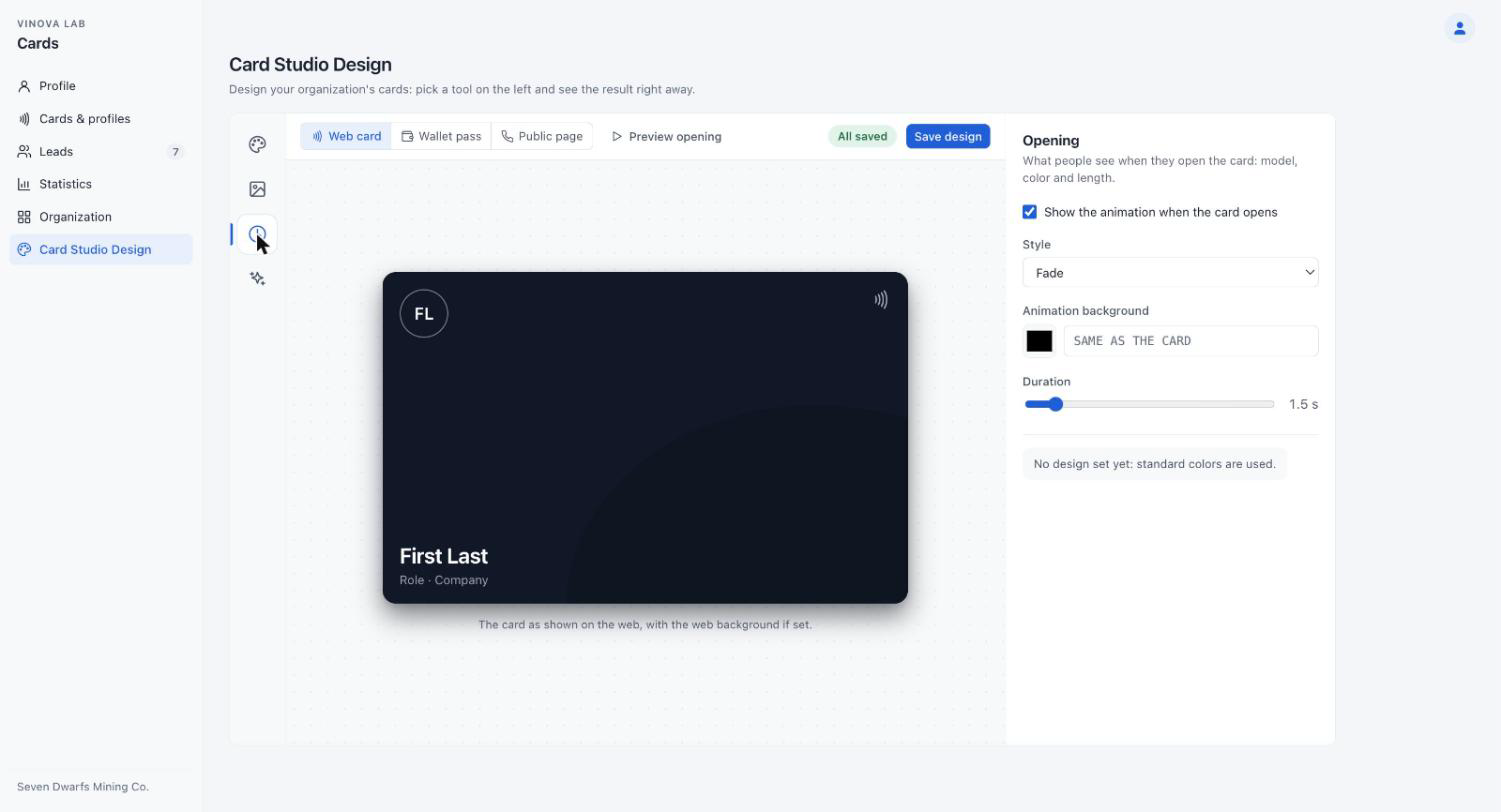
Under Opening you decide what people see when the card opens:
- Tick Show the animation when the card opens.
- Choose the Style: Fade, Zoom, Rotate, Slide or Outline.
- Choose the Animation background (or Same as the card) and the Duration in seconds.
- Click Preview opening to watch it on the canvas.
4. Save
- Check the three previews on the canvas.
- Click Save design.
You see Design saved. Wallet passes update on their own.
To undo the design of a sub-organization, click Go back to the company design. For the whole company, Restore standard colors brings back the standard colors.