Sign in
This page explains how to sign in to the Cards web app, how the second factor works and what to do if you forget your password. For the mobile app see Mobile app: first sign-in.
Activate your account
If an administrator invited you, you receive an email with a link.
- Open the link. The Activate your account page opens.
- Enter a password of at least 8 characters in New password and repeat it in Confirm password.
- Click Verify email and set password.
- When you see Account activated, go back to the sign-in page and sign in.
If the link has expired you see Invalid or expired link: click Request a new link.
Sign in with email and password
- Open the Cards web app.
- Enter your email and password.
- Click to sign in.
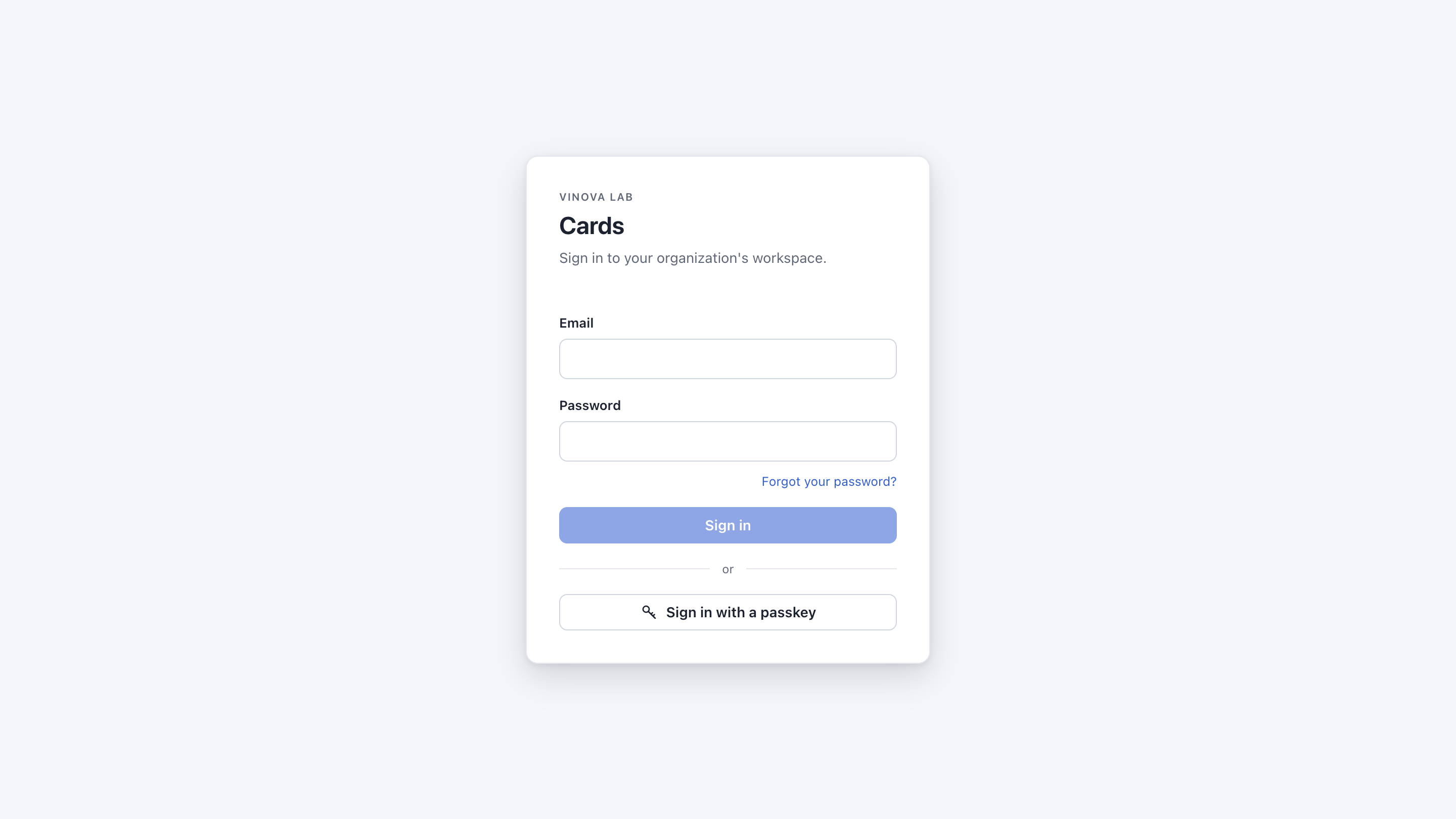
If you already used a passkey on this browser, Cards offers it first: confirm with your fingerprint, face or device PIN and you are in.
Second factor
Your organization may require two-step verification. In that case, after the password Cards asks you to confirm your identity with:
- the 6-digit code of your authenticator app,
- a passkey or security key,
- or one of your backup codes.
If you have not set up a second factor yet and your organization requires it, Cards guides you through the setup before letting you in.
The full guide, with all methods, is in Two-step verification (MFA).
Some sensitive actions can ask you to confirm your identity again, even when you are already signed in. A Confirm your identity window opens: complete it and the page continues where it was.
First access: privacy notice
The first time you sign in, Cards shows the Before you start page with your organization's privacy notice.
- Read the notice.
- Tick I have read the notice and consent to the processing of my data.
- Click Accept and set up your profile.
Forgot your password
- On the sign-in page click Forgot your password?.
- Enter your email and click Send recovery link.
- Open the email and click the link.
- Choose a new password of at least 8 characters, repeat it and click Save new password.
- When you see Password updated, click Back to sign in.
For privacy, Cards always answers "If the address is registered, you will shortly receive an email with instructions", even when the address is not registered.
Sign out
Click your user icon at the top and choose Sign out.