Settings tab
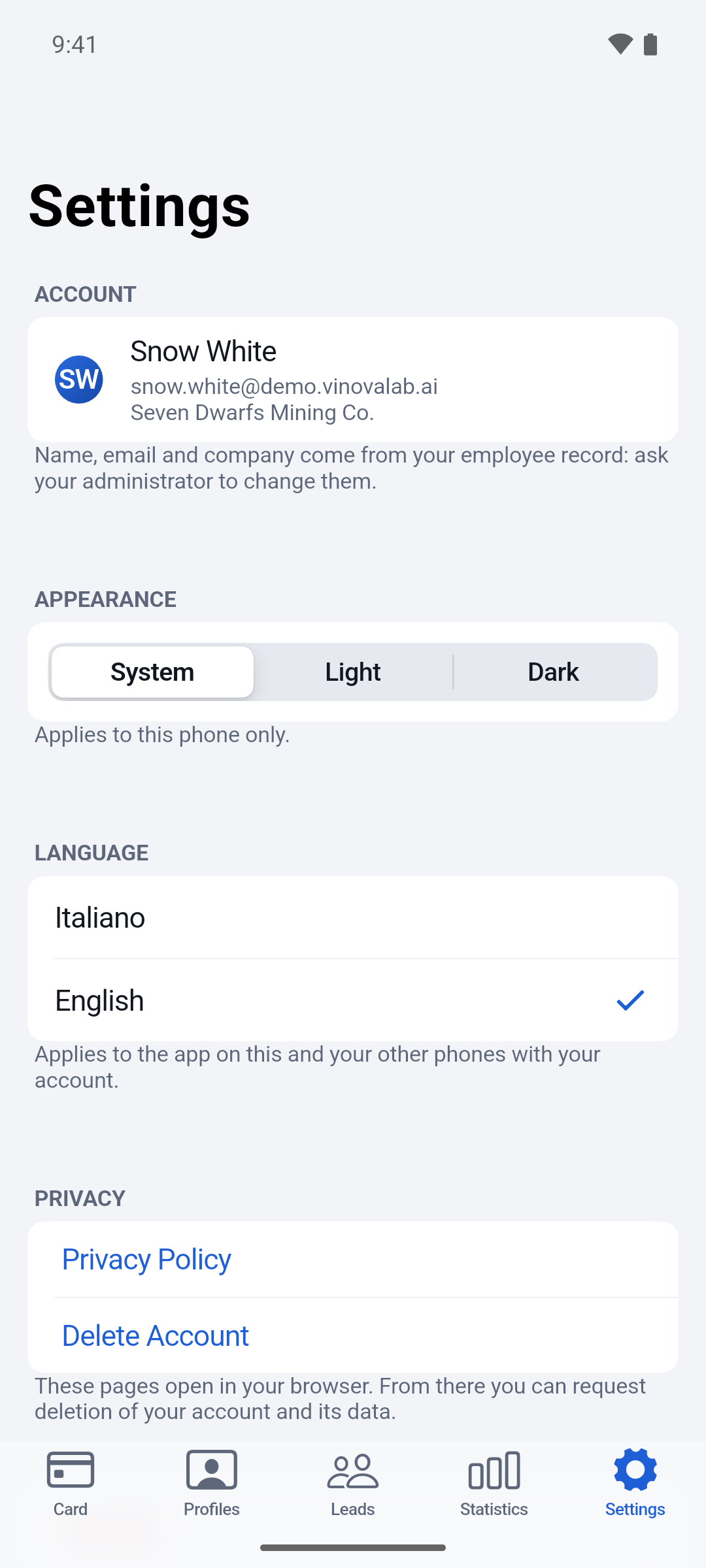
Account
Shows your name, email and company. They come from your employee record: to change them, ask your administrator.
Appearance
Choose System, Light or Dark. It applies to this phone only.
Language
Choose Italiano or English. The choice is saved on your profile, so it applies to the app on your other phones too.
Security
Turn on Unlock with Face ID (or Touch ID / fingerprint). Cards then asks for Face ID before showing your cards and leads, and again after 5 minutes in the background. If Face ID fails you can use your phone's passcode.
The option does not appear on phones without biometrics.
If you see "Face ID is off for Cards", open the iPhone Settings, tap Vinova Cards and turn on Face ID, or sign in with your password.
Passkeys, two-step verification and backup codes are managed from the web app: see Account security.
Privacy
Privacy Policy and Delete Account open the Vinova Cards pages in your browser. From there you can request deletion of your account and its data.
The privacy notice your contacts see before leaving their details is not set here: your organization's administrator writes it from the web app, at the bottom of Organization → People. See Privacy notice.
Log out
Tap Log Out and confirm. You'll need to sign in again to see your cards and leads.
At the bottom you find the app version, build and release date.