Profiles tab
In the Profiles tab you edit your details and contacts and decide, profile by profile, what people see.
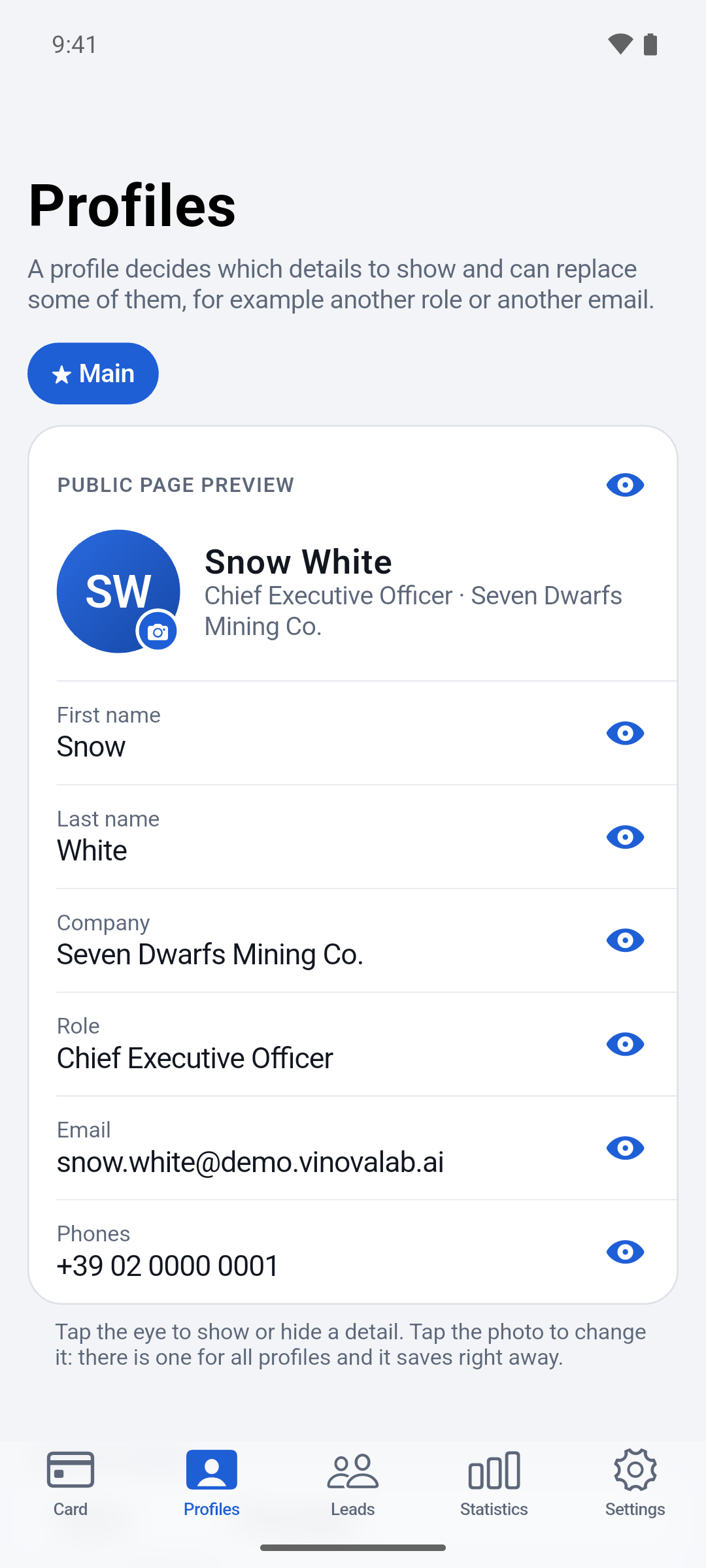
The preview
At the top you see a Public page preview. The profiles are listed as chips above it: the Default one is marked.
- Tap the eye next to a detail to show or hide it in this profile.
- Tap the photo to change it: Take Photo, Choose from Library or Remove Photo. There is one photo for all profiles and it saves right away.
Details with a lock are always shown, set by the company.
Create a profile
- Tap New profile.
- Write the Profile name, for example "Events".
- Use the eyes in the preview to choose the visible details.
- In Values for this profile, fill in only what you want to replace. Leave empty to use the value from your profile.
- In Contacts shown, pick the contacts for this profile. If you pick none in a group, it shows all of that group.
- Tap Save.
If you have no profile yet, tap Create Default Profile: it shows all your details.
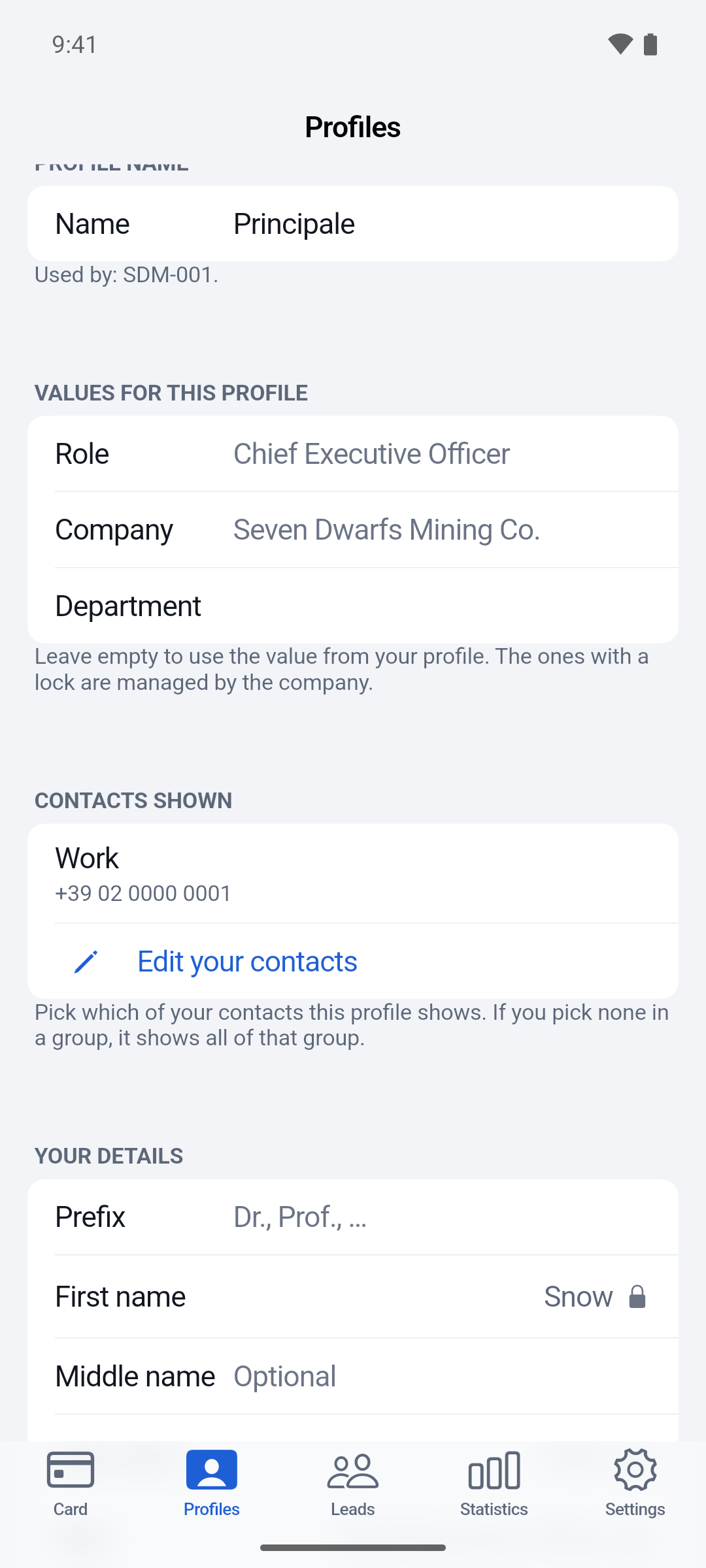
Your details and contacts
- Your details: prefix, middle name and other values. Locked details come from the HR registry or are managed by the company and cannot be changed from Cards.
- Tap Edit your contacts to add phones, emails, websites and social profiles (Add phone, Add email, Add website, Add social profile).
Other actions
- Make Default: cards with no profile chosen show this profile.
- Delete Profile: cards using it switch to the default. The default profile can't be deleted.
When you reach the maximum number of profiles you see Profile Limit Reached: delete one or ask your administrator to raise the limit.