Card tab
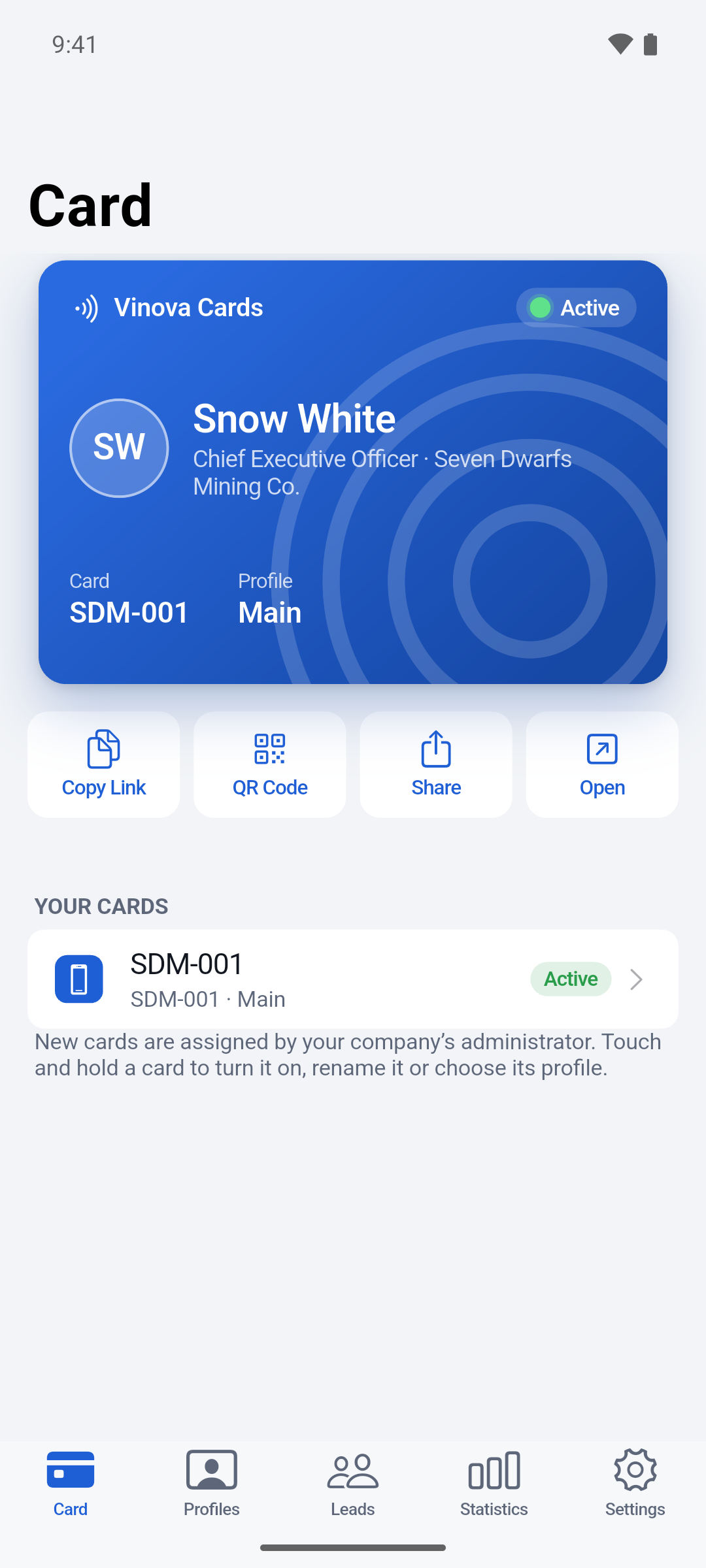
The Card tab shows your cards as passes you can swipe through. From here you share your card, show its QR code and add it to Apple Wallet or Google Wallet.
Share your card
Under the card you find four buttons:
- Copy Link: copies your card's link.
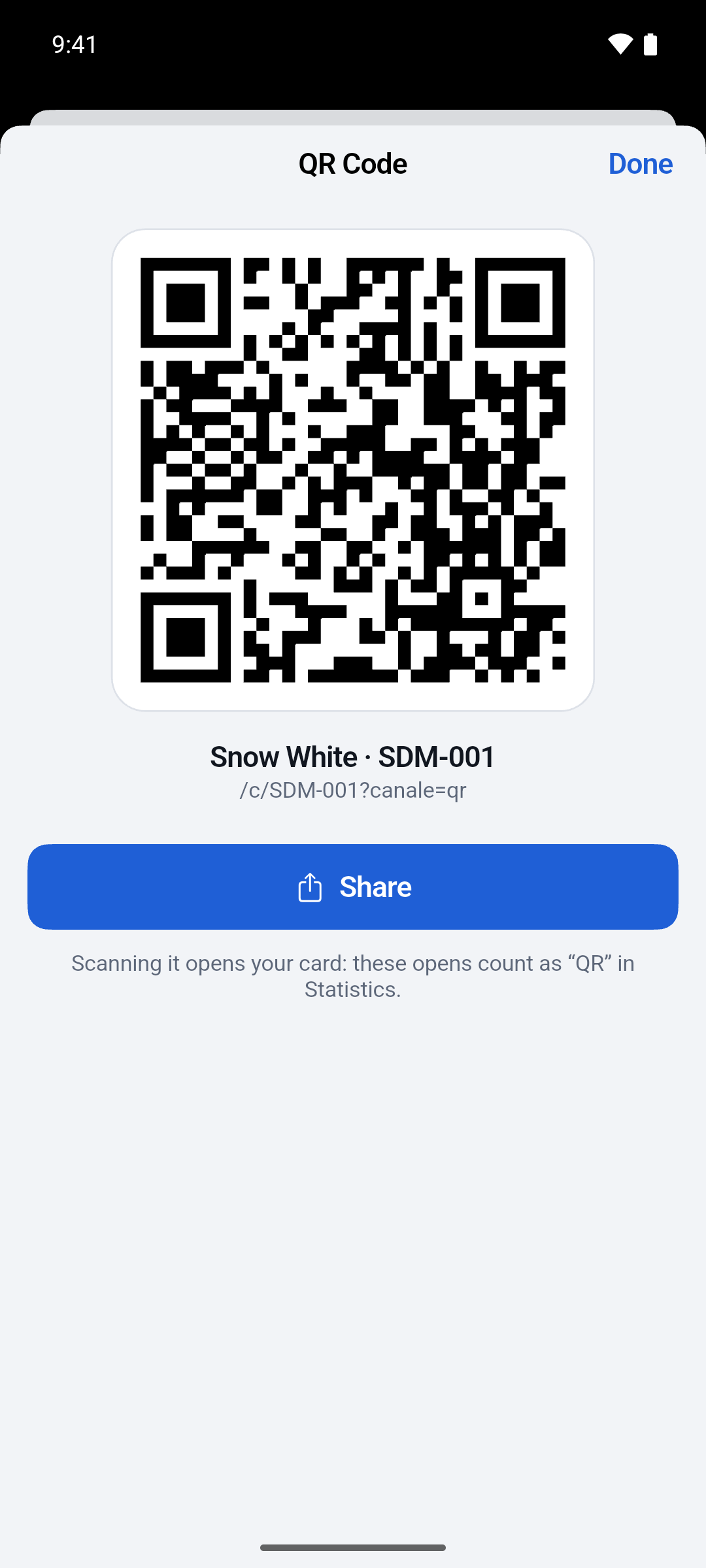
- QR Code: shows a large QR code. Whoever scans it opens your card: these opens count as "QR" in Statistics.
- Share: sends the link with a message ("Here is my digital business card: ...").
- Open: opens your public page.
If you have more than one card, swipe left or right to change card.
Add to Apple Wallet or Google Wallet
- Choose the card.
- On iPhone tap Add to Apple Wallet; on Android tap Add to Google Wallet. Then confirm.
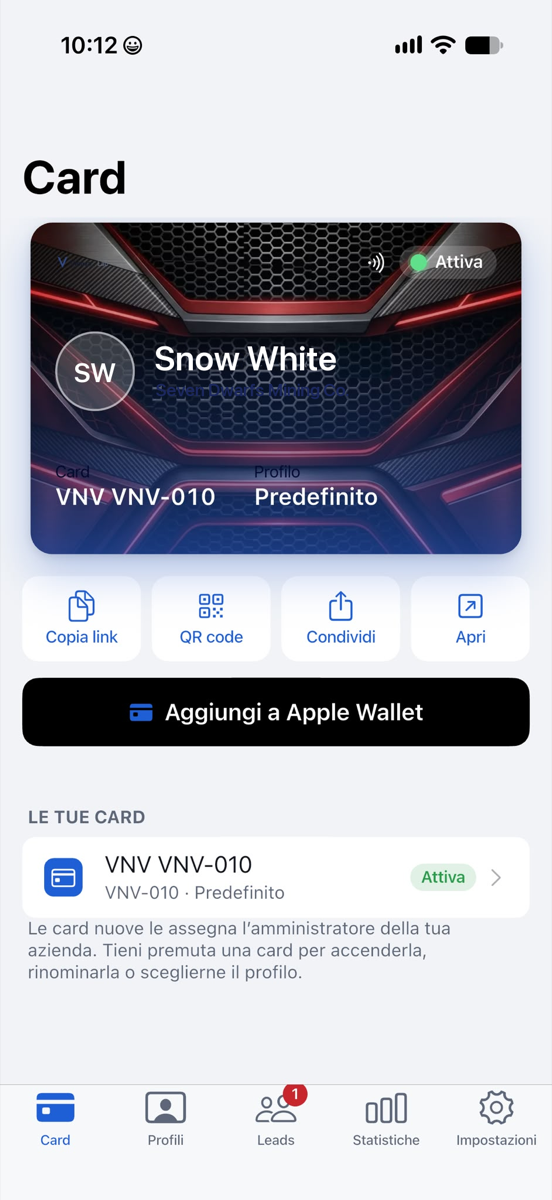
The Wallet keeps one pass per person: adding a card makes the pass show it instead of the card added before. The button is not available when the card is off.
To remove the pass from Apple Wallet: open the pass, tap •••, then Pass Details and scroll to Remove Pass. To remove it from Google Wallet: open the pass in Google Wallet, open its details (⋮ menu) and choose Remove.
Card details
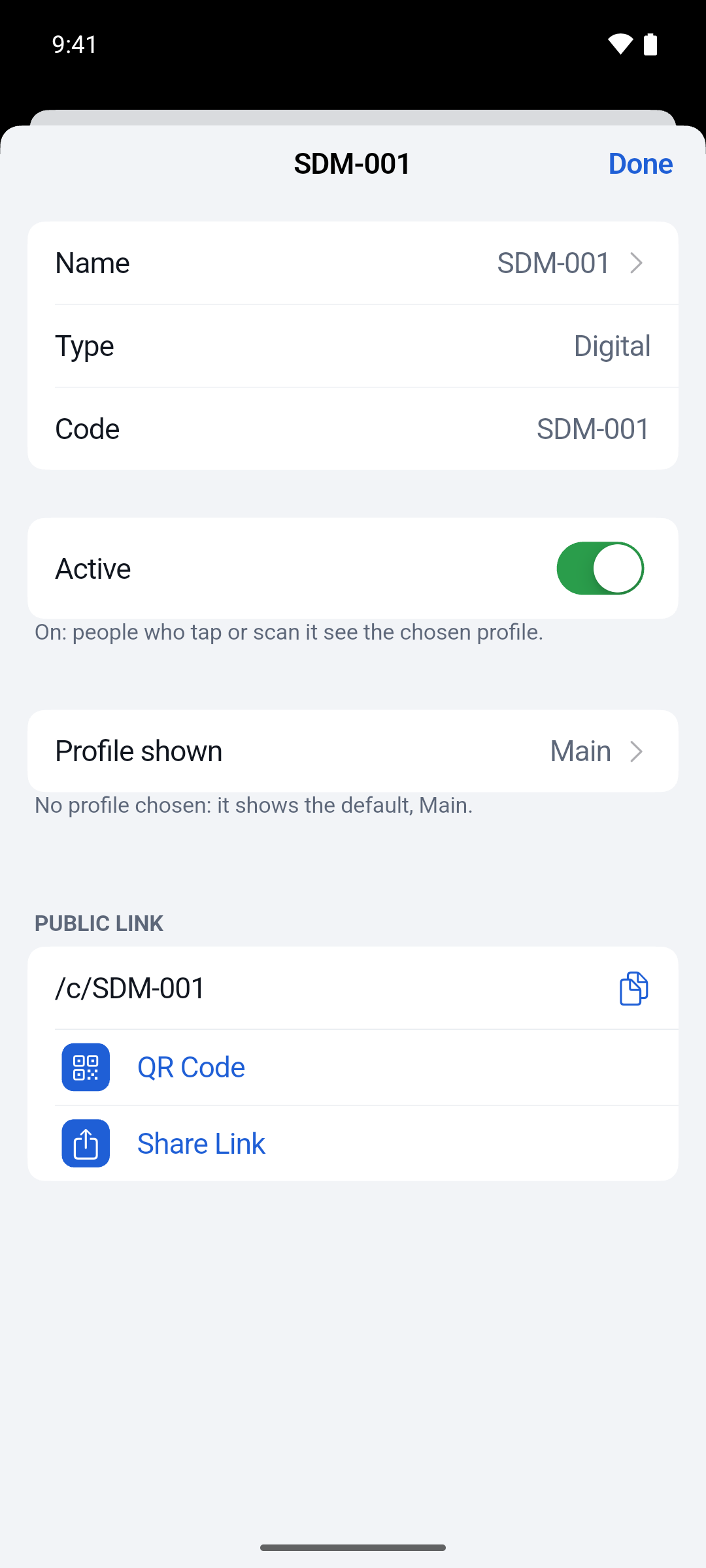
Tap a card (on the pass or in the Your cards list) to open its details: Name, Type, Code, Public link, state and the profile shown.
From here you can:
- Turn On or Turn Off the card. When it is off, people who tap it see "Card unavailable" and the Wallet pass turns grey.
- Rename the card.
- Choose Profile: the profile decides which details people see when they open this card. With no profile chosen it shows the default.
- Share Link or show the QR Code.
Touch and hold a card for the quick menu with the same actions.
New cards are assigned by your company's administrator. NFC devices arrive ready to use.
"Card not found" warning
If an active card has no profile and you have no default profile, its link answers "Card not found". The tab shows a warning: tap Go to Profiles and create your default profile.