Design Studio proposals
With the Proposals tool of Card Studio Design you describe in words what you want, and the Design Studio proposes images or color changes. Every proposal stays a draft until you press Apply.
Who can use it: Card Designer role.
Ask for images
- Click Proposals in the tools.
- In What to create choose Images.
- In Where the image goes choose Wallet pass strip or Web page background.
- Choose how many Proposals you want.
- Write a Description, for example soft waves in the logo colours, minimal style.
- Click Generate proposals. It can take up to two minutes.
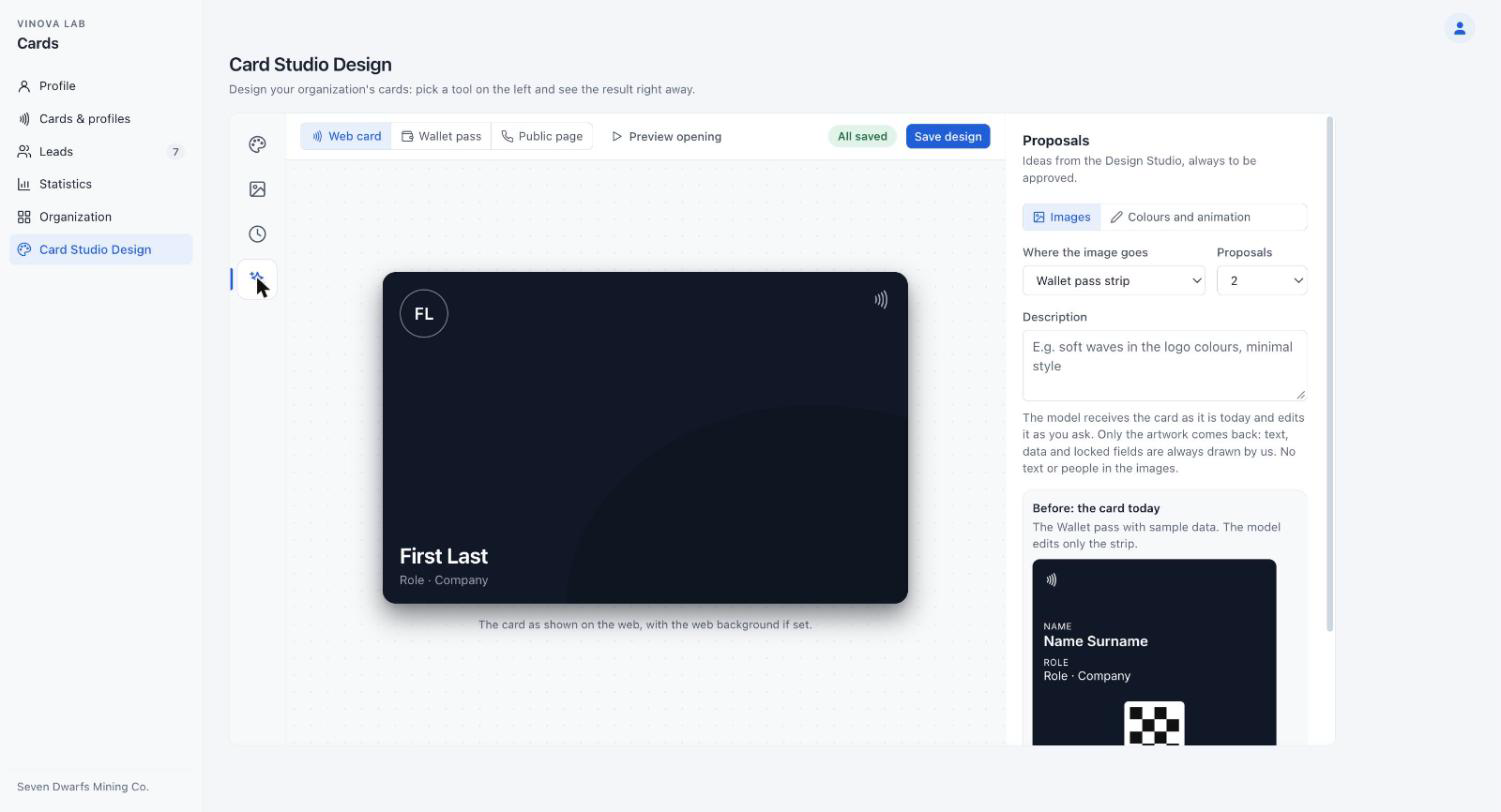
The Design Studio starts from the card as it is today (Before: the card today) and edits only the image: text, data and locked fields are always drawn by Cards. Do not ask for text or people in the images.
Ask for color and animation changes
- In What to create choose Colours and animation.
- In What to change write what you want, for example make it more understated, blue accent.
- Click Generate proposals.
It can change colors and the opening animation. It never touches locked fields or people's data. Changes it cannot make are listed as Ignored.
Apply or discard
Each proposal shows the draft next to the current card (After: draft to approve).
- Apply: the draft becomes the active design (Draft applied: it is now the active design.).
- Discard: the draft is thrown away and nothing changes.
Only two generations can run at the same time for the organization. A draft expires after a while: if it does, generate it again.